 Storeboard
/App Store screenshot sizes
App Store screenshot sizes (2026)
Every pixel dimension the App Store accepts, from iPhone to Apple Vision Pro, under the display names App Store Connect uses now. Plus the part most guides skip: you almost certainly don't need all of them.
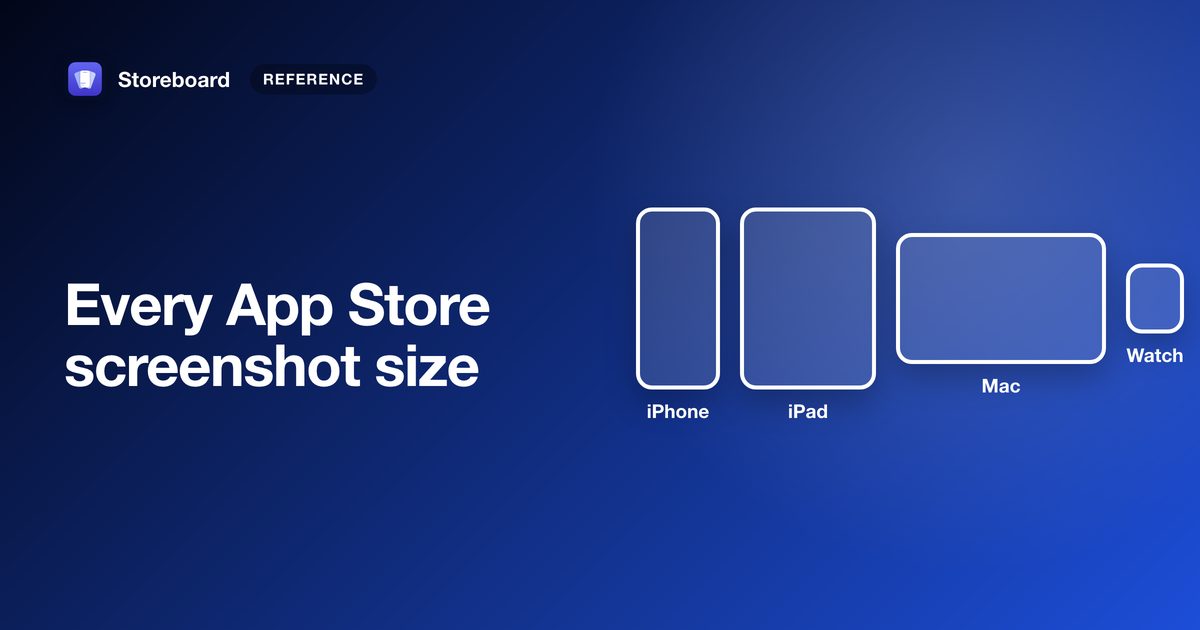
Apple requires one iPhone set at the iPhone with Dynamic Island (medium display) size, 1179 × 2556 or 1206 × 2622, and, if your app runs on iPad, one 13-inch iPad set. Every other size uses scaled copies of a neighbouring size when you don't upload it. Upload more only if you want a different design for a size.
On this page
iPhone screenshot sizes
App Store Connect now names iPhone sizes by display type rather than by inches. Portrait sizes are listed; each also takes the same size turned to landscape. From Apple's screenshot specifications, checked 24 October 2026:
| Display type | Portrait (px) | Notes |
|---|---|---|
| Dynamic Island (medium display) 6.3″ and 6.1″: iPhone 14 Pro to 18 Pro, 15 to 17 | 1179 × 2556 1206 × 2622 | Required |
| Dynamic Island (large display) 6.9″ and 6.7″: Pro Max, Plus, iPhone Air | 1320 × 2868 1290 × 2796 1260 × 2736 | Optional |
| Face ID (large display) iPhone XR, XS Max, 11, 11 to 13 Pro Max, 14 Plus | 1284 × 2778 1242 × 2688 | Optional |
| Face ID (medium display) 6.1″ to 5.4″: iPhone X to 14, 16e, 17e | 1170 × 2532 1125 × 2436 1080 × 2340 | Optional |
| Home Button (large display) 5.5″: iPhone 6 Plus to 8 Plus | 1242 × 2208 | Optional |
| Home Button (medium display) 4.7″: iPhone 6 to 8, SE 2 and 3 | 750 × 1334 | Optional |
| Home Button (4″ and 3.5″) iPhone 4 to 5S, SE 1 | 640 × 1136 640 × 960 | Optional |
When you don't upload a size, App Store Connect uses scaled screenshots from a neighbouring one: the medium Dynamic Island slot falls back to Face ID (large), which falls back to Dynamic Island (large), and the older sizes step down from there. The oldest iPhone and iPad sizes also take versions without the status bar. Before you submit, check App Store Connect shows the required medium slot as filled.
The trap is that each display type validates its own exact sizes. A 1284 × 2778 image belongs to Face ID (large display); upload it under Dynamic Island (large display) and it's rejected, even though it's a perfectly good screenshot. It's the most common upload failure, and the reason exporting at a known-good size beats resizing by hand.
iPhone Duo screenshot sizes
| Display | Portrait | Landscape |
|---|---|---|
| Inner (open) | 2007 × 2853 | 2853 × 2007 |
| Outer (folded) | 1398 × 2034 | 2034 × 1398 |
Optional today. Apple will require them from April 2027 for apps built with the iOS 27.1 SDK or later, and submitting them adds an optimized-for-iPhone-Duo badge to your product page. The shapes are close to iPad's, so design them as their own set: see iPhone Duo App Store screenshots. They're uploaded through App Store Connect's new Asset Library, which is also the only way to send them with the API.
iPad screenshot sizes
| Display | Portrait (px) | Notes |
|---|---|---|
| 13″ iPad Pro (M4, M5), iPad Air (M2 to M4), older 12.9″ iPad Pros | 2064 × 2752 2048 × 2732 | Required for iPad apps |
| 12.9″ iPad Pro (2nd generation) | 2048 × 2732 | Optional |
| 11″ iPad Pro, Air, iPad (A16, 10th gen), iPad mini | 1668 × 2420 1668 × 2388 1640 × 2360 1488 × 2266 | Optional |
| 10.5″ | 1668 × 2224 | Optional |
| 9.7″ | 1536 × 2048 768 × 1024 | Optional |
If your app supports iPad at all, you need a 13-inch iPad set: Apple won't reuse your iPhone screenshots. This catches a lot of universal apps right at submission. Smaller iPad sizes fall back to scaled 13-inch screenshots.
Mac screenshot sizes
Mac screenshots are 16:10 and, unlike iOS, landscape. Apple accepts any one of these four sizes and requires at least one screenshot for Mac apps.
| Pixels | Notes |
|---|---|
| 2880 × 1800 | The largest; what we'd use |
| 2560 × 1600 | Accepted |
| 1440 × 900 | Accepted |
| 1280 × 800 | Accepted |
Apple Watch screenshot sizes
Pick one size and use it for every language: Apple requires the same Apple Watch size across all of an app's localizations.
| Models | Pixels |
|---|---|
| Ultra 3, Ultra 4 | 422 × 514 |
| Ultra, Ultra 2 | 410 × 502 |
| Series 10 to 12 | 416 × 496 |
| Series 7 to 9 | 396 × 484 |
| Series 4 to 6, SE | 368 × 448 |
| Series 1 to 3 | 312 × 390 |
Apple TV and Apple Vision Pro
- Apple TV: 1920 × 1080 or 3840 × 2160, required for Apple TV apps.
- Apple Vision Pro: 3840 × 2160, required for visionOS apps.
Every device takes JPEG or PNG, with no transparency.
How many screenshots can you upload?
Up to 10 per display size, per language, and at least one for each required size. That cap matters more than people expect: if you're replacing a set, you have to delete the old images before uploading the new ones, or you hit the ceiling mid-upload and the operation fails halfway.
But the number that actually decides your conversion rate is much smaller. Only the first two or three screenshots appear in search results. Everything after that is seen only by people who already cared enough to tap through. Put your strongest claim on image one and treat images 4–10 as supporting detail, not headline space.
On iOS 27 and iPadOS 27, a search results image can take the place of that first impression. Its sizes are separate from screenshots: see App Store header and search results images.
Sizes × languages: the multiplier nobody plans for
Here's where the workload actually lives. Screenshot sets are stored per localization. Four device families across fifteen languages is not 4 sets — it's up to 60, each needing its own translated caption. Done by hand, that's a week. It's also why most apps ship English screenshots to every market and quietly lose the shoppers who don't read English.
A localization isn't only a translation — it's another 100-character keyword field. Adding English (UK), English (AU) and English (CA) gives you three extra keyword fields aimed at the same language, with different search terms in each country. That's one of the cheapest ranking wins available. More on keyword fields →
Export every size, for every language, in one pass
Storeboard renders your screens at Apple's exact pixel sizes for every device and language — on your Mac, with nothing uploaded to a server.
Download for MacFAQ
Do I need to upload every screenshot size?
No. Apple requires one iPhone set at the iPhone with Dynamic Island (medium display) size, 1179 × 2556 or 1206 × 2622, and one 13-inch set if your app runs on iPad. Sizes you don't upload use scaled copies of a neighbouring size. Upload others only when you want a different design for them.
Why was my screenshot rejected even though the size looks right?
Almost always because the dimensions don't match the display type you uploaded it under. Each display type validates its own exact sizes: 1284 × 2778 belongs to iPhone with Face ID (large display), not iPhone with Dynamic Island (large display). The image is fine; the slot is wrong.
Can I use the same screenshots for every language?
You can, and many apps do. But each localization keeps its own set, so shipping English images to Japan means Japanese shoppers read English captions — the single biggest, most-ignored conversion leak in App Store listings.
JPEG or PNG?
Both are accepted. JPEG at high quality is usually the better trade: visually identical for photographic screenshots at a fraction of the file size, which matters for shoppers on slow connections. Use PNG when you have hard-edged UI or flat colour that shows compression artefacts.