 Storeboard
Storeboard/Blog/Asset Library
The App Store Connect Asset Library, explained
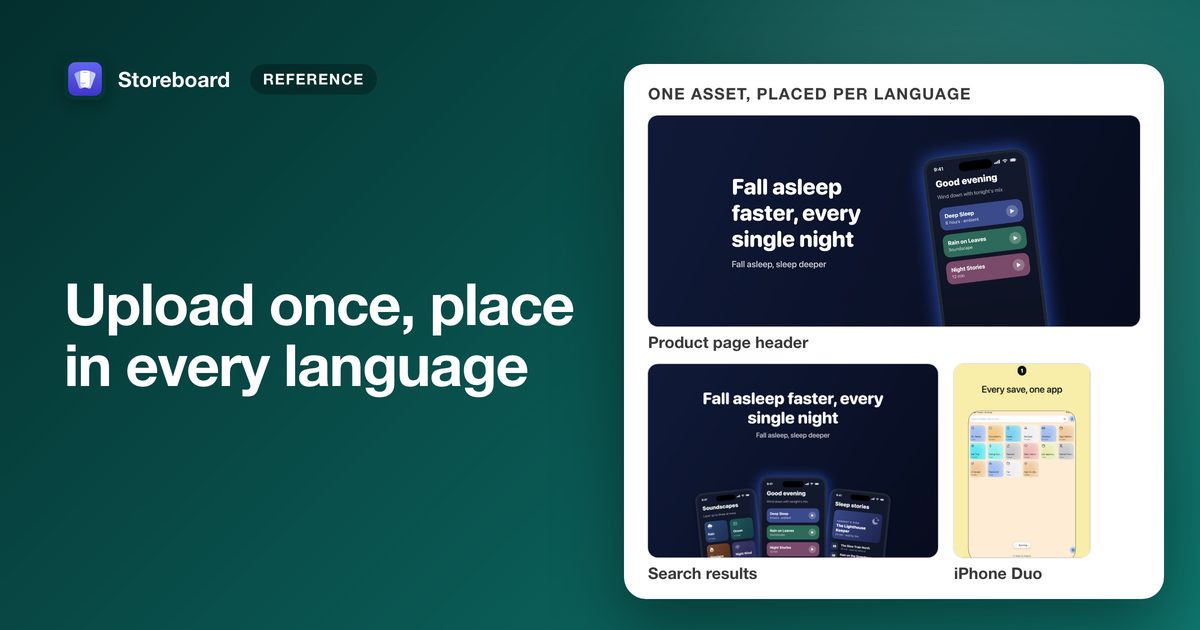
The Asset Library is the part of App Store Connect, added on 5 October 2026, that holds every image and video for an app in one place: screenshots, app previews and the new creative assets (product page header, search results and In-App Event media). You upload an asset once, then place it on a version, custom product page, product page test or In-App Event, one language at a time. Assets that were never submitted can be deleted; approved ones can only be archived.
Until October, every screenshot belonged to one screenshot set on one version in one language. Upload the same image for ten languages and App Store Connect kept ten copies. The Asset Library splits the file from where it appears. That's a bigger change than it looks, and it explains most of the new rules about deleting, archiving and review. Everything here is from Apple's help pages and API documentation, checked on 31 October 2026, plus what we learned building Asset Library publishing into Storeboard.
Where is the Asset Library?
In App Store Connect, open Apps, pick your app, and click Asset Library in the sidebar. The + button offers Upload Creative Assets or Previews and Screenshots. You can filter the list by type, status and format. Apple's help says you need the Account Holder, Admin, App Manager or Marketing role to manage assets (Manage your App Store assets).
What goes in the Asset Library
Every asset has one of two categories, chosen when it's uploaded and fixed after that. The category decides which placements it can fill:
| Category | What it holds | Can be placed on |
|---|---|---|
| Previews and screenshots | Screenshots and app previews for every device, including iPhone Duo | Versions, custom product pages, product page optimization tests |
| Creative assets | Product page header, search results image, In-App Event card and details media | Versions, custom product pages, product page optimization tests, In-App Events |
Creative assets are new, optional, and appear on iOS 27 and iPadOS 27 and later. Apple's sizes for them, from the creative assets specifications:
| Placement | Image size (pixels) | Video |
|---|---|---|
| Product page header | 3840 × 1646 (21:9), or 5244 × 2950 (16:9, PNG) | 21:9, 5–30 s |
| Search results | 1920 × 1280 to 3840 × 2560 (3:2), or 5244 × 2950 (16:9, PNG) | 3:2, 5–30 s |
| In-App Event card | 1920 × 1080 to 3840 × 2160 (16:9) | 16:9, 15–30 s |
| In-App Event details page | 1080 × 1920 to 2160 × 3840 (9:16) | 9:16, 15–30 s |
Images can't have transparency. Videos run at 30 or 60 fps as .mov, .m4v or .mp4, loop, and start muted. Our guide to header and search results images covers the content rules and how the 16:9 universal image crops in each slot.
Assets and placements: the one idea to get
An asset is a file you uploaded. A placement puts that asset in one slot, for one device group, in one language, on one surface. Apple's API documentation describes the parts like this:
↺ The same asset can back many placements: every language, a custom product page and a test at once.
- Per language. A placement targets one localization. A header in 12 languages is 12 placements: of one language-neutral asset, or of 12 localized ones. Apple asks you to localize creative assets for every language your app supports, so plan on the second.
- Placements are fixed. You can't swap the image inside a placement. To show a new one, remove the placement and place the new asset. The old asset stays in the library.
- Each slot has a cap. On a version, Apple's documentation gives 10 screenshots, 3 app previews and 1 product page header per device group. Each In-App Event slot takes a single asset. Custom product pages and tests have their own limits.
- Assets don't change. You can rename an asset or change a video's poster frame, but not the file. A new picture is a new upload.
Asset Library statuses
From Apple's App Store asset statuses, with the API's name for each where it differs:
| Status | What it means | What you can do |
|---|---|---|
Uploading (API: AWAITING_UPLOAD) | The file is being added | Wait, or finish the upload |
Processing (UPLOAD_COMPLETE) | Apple is processing and validating it | Nothing until it finishes |
| Prepare for Submission | Uploaded, never submitted | Place it anywhere it fits, or delete it |
| Ready for Review | In a draft submission that hasn't been sent | Send or edit the submission |
| Waiting for Review | Apple has it, review hasn't started | Wait |
| In Review | App Review is looking at it | Cancel the submission |
| Accepted | This asset passed, but something else in the same submission was rejected | Fix or remove the rejected item; nothing publishes until all pass |
| Approved | Approved by Apple | Place it, publish it, or archive it |
| Rejected | App Review didn't accept it | Fix or replace it and resubmit, or remove it from the submission |
| Archived | Retired; hidden from the library by default | Show it with the Status filter; unarchive it |
The API adds one more, FAILED, for a file that didn't process. Its
stateDetails say why. Placements have states of their own that follow the surface they
sit on, from ASSET_PROCESSING to PARENT_APPROVED.
Submit assets without a new app version
This is the most useful part for most developers: once your app has an approved version, you can get creative assets approved on their own and change your header without shipping an update. From Submit assets from Asset Library:
- In the Asset Library, click Edit, select the assets, then Add for Review.
- Add them to a draft submission or start a new one. Assets with no version are reviewed against the latest version for the platform you choose.
- Click Submit for Review in the Draft Submission pane.
Once an asset is approved, open the version that's live on the App Store, then Header and Search Results ▸ Header (or Search Results) ▸ Browse Assets, choose it, click Next and Publish. Your product page updates with no new build.
Three rules decide whether an asset can go on its own:
- First version first. A brand-new app's assets go in with its first version.
- Assigned assets travel with their parent. Anything placed on a version, custom product page, test or In-App Event is reviewed with that item, not separately.
- Not while the parent is in review. An asset can't be submitted alone if the item it's assigned to is already in an active submission.
Apple's submit page lists only the Account Holder, Admin and App Manager roles. Marketing is listed for managing assets but not for submitting them, so a Marketing user may need a colleague to send them for review.
How to reorder screenshots in the Asset Library
Order belongs to the placements, not the assets, and it's set per device group per language. In App Store Connect, reorder on the version's Product Page Information, or in the Media Manager (View All Sizes), which also lets you add assets from the library and remove placements. Through the API, one ordering request per group and language lists the placements in display order. In-App Event slots hold one asset each, so there's nothing to order.
Archive or delete?
| Delete | Archive | |
|---|---|---|
| Which assets | Only Prepare for Submission: never submitted | Only approved assets |
| Afterwards | Gone for good | Kept, hidden from the library by default; can't be used in new placements |
| First | Through the API, remove its placements | Nothing |
| Use it for | Mistakes and abandoned uploads | Last season's header; Unarchive Asset brings it back |
Apple notes that an archived asset may come back on its own when a new version of a placement carries it over. The status page also uses Archived for assets that belonged to a previous version and were replaced, so not every archived asset is one you archived.
Removing an asset from a placement (the Delete button on the version's Header and Search Results tab, or the – button in the Media Manager) takes it off the App Store but leaves it in the library.
iPhone Duo screenshots and the Asset Library
On 9 September 2026 Apple added the iPhone Duo screenshot sizes and said uploading would come
"later this year". On 5 October, the same day the Asset Library launched, it began accepting iPhone
Duo optimized apps. Duo screenshots are previews-and-screenshots assets, placed in a device group
whose display class is IPHONE_DUO:
- Sizes: 2007 × 2853 open and 1398 × 2034 folded, each also in landscape (2853 × 2007 and 2034 × 1398). Up to 10 per size, like every other device.
- Required: from April 2027, for apps using the iOS 27.1 SDK or later. Submitting them earlier adds an optimized-for-iPhone-Duo badge to your product page.
- Through the API: the Asset Library is the only route. The older screenshot set resource has no iPhone Duo display type, and Apple has deprecated it.
Apple's help pages don't yet say which screen shows the Duo sizes. The Media Manager (View All Sizes) is where App Store Connect manages every device size per language, so look there and in the Asset Library. Design guidance is in our iPhone Duo screenshots guide.
What you can do through the App Store Connect API
Version 4.5.1 of the API added the Asset Library. Checked against Apple's OpenAPI specification:
| Through the API | Yes or no |
|---|---|
| List images and videos, filtered by state, category, name or spec | Yes |
| Upload images and videos | Yes |
| Rename, set a video's poster frame, archive | Yes |
| Delete an asset | Yes, once nothing places it |
| Place on a version, custom product page, test treatment or In-App Event | Yes, while that item is editable |
| Reorder placements | Yes, per group and language |
| Read every size, group and limit Apple accepts | Yes (reference data) |
| Add a library asset to a review submission | The spec allows it |
| Change the file or the category of an existing asset | No: upload a new one |
| Swap the asset inside a placement | No: delete it and place again |
The endpoints and request bodies, step by step, are in our App Store Connect API Asset Library guide. If something's stuck or refused, see Asset Library errors and fixes.
Publishing to the Asset Library from Storeboard Coming soon
Storeboard 1.3 designs the header, search results and universal images and iPhone Duo screenshot sets in every language, and publishes them to the Asset Library with your own App Store Connect API key: one placement per slot per language, with Duo groups read from Apple's reference data rather than hard-coded. It isn't on the App Store yet: today's version is 1.1.6, and 1.3 arrives as an update. See what's coming in Storeboard 1.3.
Make the assets the library is waiting for
Storeboard runs on your Mac: no account, no upload. Free to download, with an optional one-time Pro purchase.
Get Storeboard for MacFAQ
What is the App Store Connect Asset Library?
A section of App Store Connect, added on 5 October 2026, that holds an app's screenshots, app previews and creative assets in one place. You upload each asset once and place it on versions, custom product pages, product page tests and In-App Events, per language.
Can I change my App Store header without a new app version?
Yes, once the app has an approved version. Submit the asset from the Asset Library on its own; when it's approved, choose it with Browse Assets on the live version's Header and Search Results tab and click Publish.
Why can't I delete an asset in the Asset Library?
Only assets in Prepare for Submission, meaning never submitted, can be deleted. Approved assets can be archived instead. Through the API, an asset's placements must be removed before the asset can be deleted.
What does Accepted mean in the Asset Library?
The asset passed review but something else in the same submission was rejected. Nothing in a submission publishes until every item is accepted, so fix or remove the rejected item.
Do I need a separate asset for each language?
Each language needs its own placement. It can reuse one language-neutral asset, but Apple asks you to localize creative assets for every language your app supports, so most headers and search images should be localized assets.
Where do iPhone Duo screenshots go?
They're screenshot assets placed in a device group whose display class is iPhone Duo. Through the App Store Connect API, the Asset Library is the only way to upload them; the older screenshot sets have no Duo type.