 Storeboard
Storeboard/Blog/Coming in 1.3
Coming in Storeboard 1.3
Coming soon Storeboard 1.3 isn't on the App Store yet: today's version is 1.1.6. Everything on this page is in the 1.3 build we've submitted for review, and arrives as an update once Apple approves it. We'll update this page when it's released.
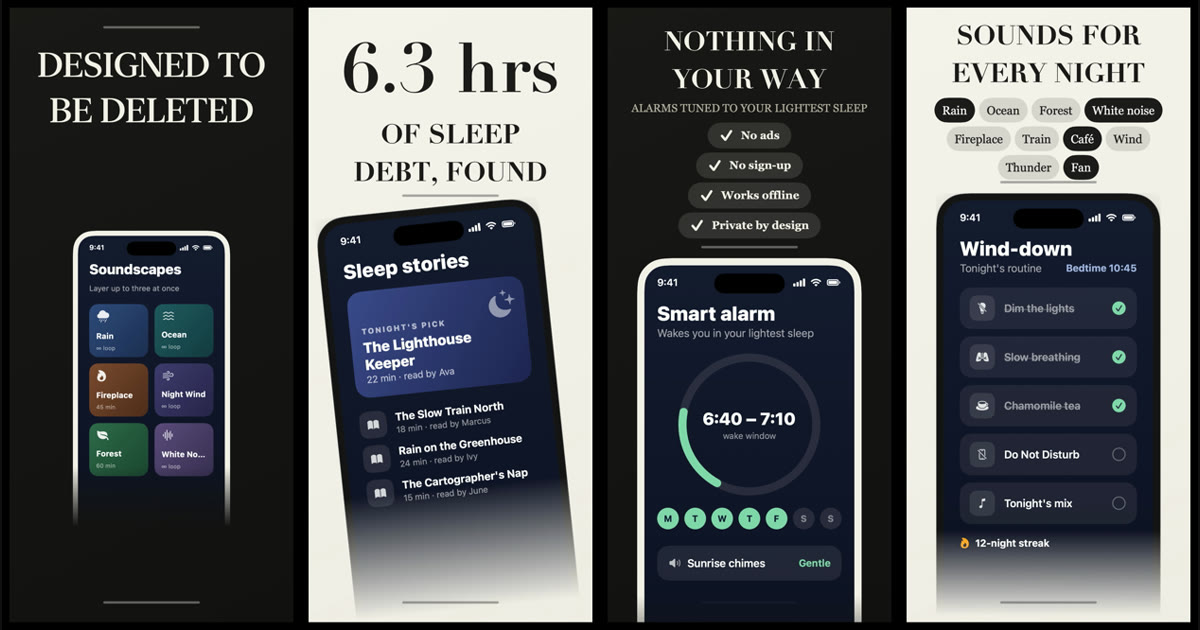
Storeboard 1.3 will let each App Store screenshot be a different kind of screen (a big number, a tick list, a rating and six more) and plan the whole set in order. It will also generate backgrounds, design the iOS 27 header and search results images, make captions bigger by default, add accessibility tools, and run in five more languages.
This page documents every feature coming in 1.3 and where to find it in the app, with videos and screenshots of each one. It covers everything added since Storeboard 1.1.6, the version on the App Store today.
Where to find each feature
| Feature | Where it is |
|---|---|
| Screen types | Media ▸ select a screen ▸ inspector ▸ This screen ▸ Type |
| Plan the set | Media ▸ inspector ▸ The set ▸ Plan the set… |
| Looks, Borrow a look | Media ▸ inspector ▸ Look ▸ View all 78 looks |
| Generated backgrounds | Plan the set ▸ Wide picture ▸ Generate one…; inspector ▸ Background ▸ Photo ▸ Generate… |
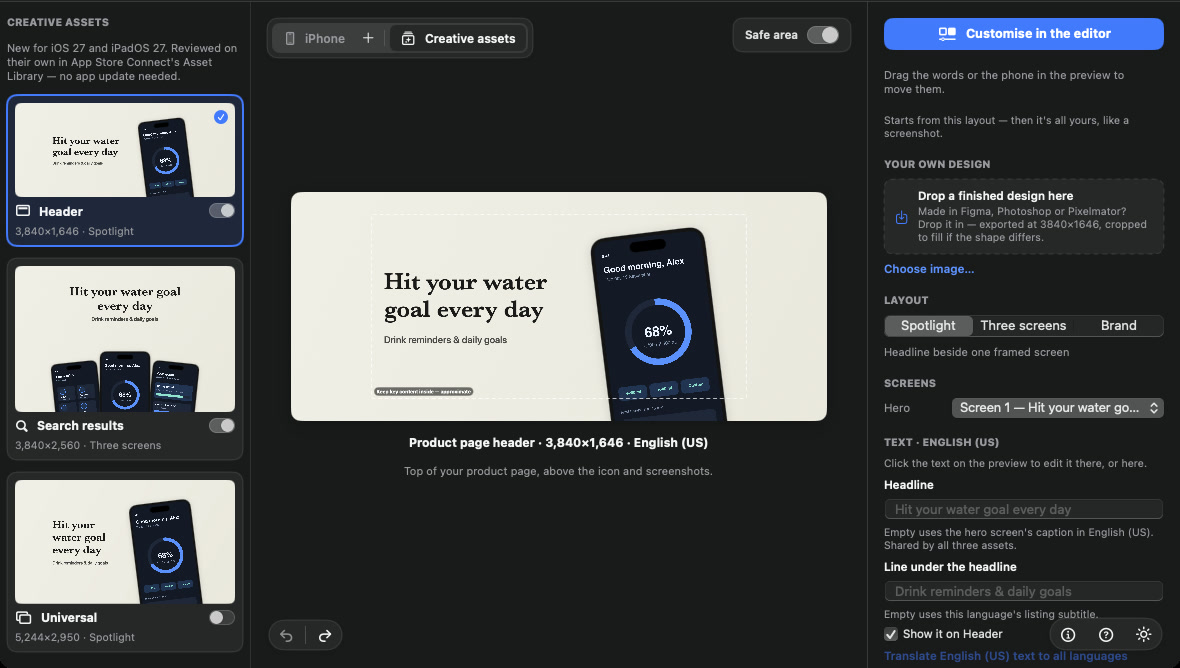
| Header and search images | Media ▸ Creative assets (top of the canvas) |
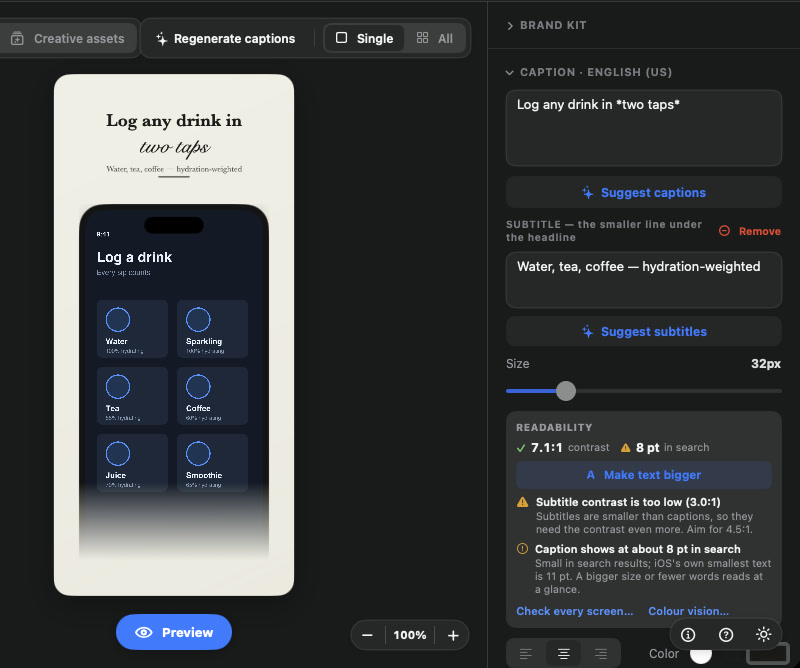
| Readability check, Make text bigger | Media ▸ inspector ▸ Caption ▸ Readability (under Size) |
| Accessibility Nutrition Labels | Listing ▸ Accessibility labels ▸ Edit labels… |
| Colour vision preview | Preview (under the canvas) ▸ Typical vision menu |
| Layers, rotate | Media ▸ inspector ▸ Layers |
| Publishing | Export ▸ Publish to App Store Connect |
| Interface language | Settings ▸ General ▸ Language |
| Agents | Settings ▸ Agents |
The tour in one minute
Screen types Coming soon
Until now every screenshot was the same kind of screen: a caption above your app in a phone. In 1.3 you choose what each screen is. Select a screen, open This screen ▸ Type in the inspector, and pick one of nine types. The fields that type needs, such as the figure for Big number or the lines for Tick list, appear right under the choice. They're written per language, like captions. Until a type's fields are filled in, the screen keeps showing as Classic and the inspector says what's missing.
| Type | What it shows |
|---|---|
| Classic | Your screenshot in a phone with a caption above. Existing projects open unchanged. |
| Big sentence | One big sentence makes the point; the phone gets smaller. |
| Big number | One figure fills the screen, with a line saying what it means. |
| Tick list | Up to four ticked lines that answer doubts, like "No ads" or "Works offline". |
| Tags | A cloud of small tags that shows range: languages, topics, sounds. |
| Rating | Your App Store stars and ratings count, plus awards you add yourself. Shown only when the app has at least 100 ratings and 4.5 stars in that storefront. |
| Before / after | Two of your own pictures side by side with a divider. |
| Three numbers | Three figures with labels. |
| Chat | Two chat bubbles: a question, then your app's answer. |
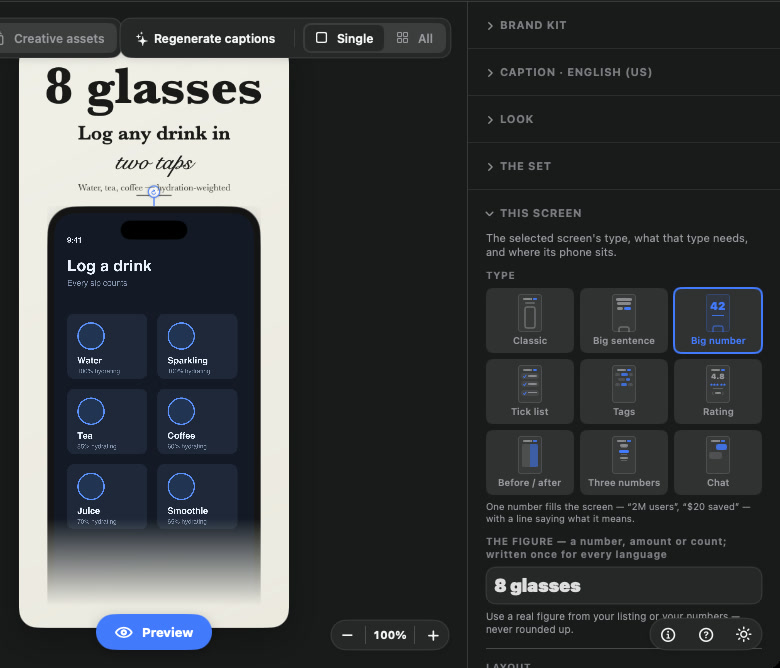
Classic is free. The other eight types are part of Storeboard Pro. Figures, ratings and awards come only from you or your live listing: Storeboard never invents a number.
Plan the set Coming soon
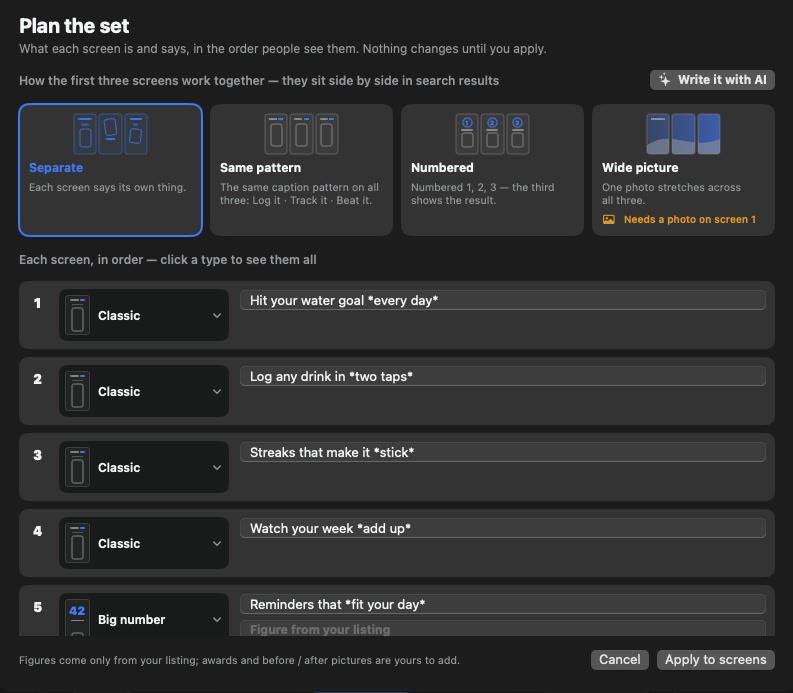
The first three screenshots sit side by side in search results, so they're read together. The set ▸ Plan the set… shows every screen in order, with its type and caption, and lets you choose how the first three work together:
- Separate: each screen says its own thing.
- Same pattern: one caption pattern in the same place on all three, so the row reads as one message. Write it with AI writes the three captions for you to check.
- Numbered: 1, 2, 3, the steps of using the app, with the result on the third.
- Wide picture: one picture runs across all three screens. It needs a photo on screen 1; add your own or generate one.
Nothing changes until you press Apply to screens, and one ⌘Z undoes the whole plan. If something can't be applied, such as Wide picture without a photo, Storeboard says so instead of silently doing nothing.
Look, The set and This screen Coming soon
The inspector's old Template section did three jobs. In 1.3 they're three sections, each saying what it changes:
- Look: colours, fonts and style for every screen. Changing the look never changes what a screen says. 78 looks in all, with View all 78 looks for the full gallery.
- The set: what each screen is and says, in order: Plan the set, the first three screens, and seasonal themes.
- This screen: the selected screen's type, its fields, and where its phone sits.
In 1.3, every look starts iPhone captions at 40 to 44 points and at least semibold, so captions stay readable at the size search results show them.
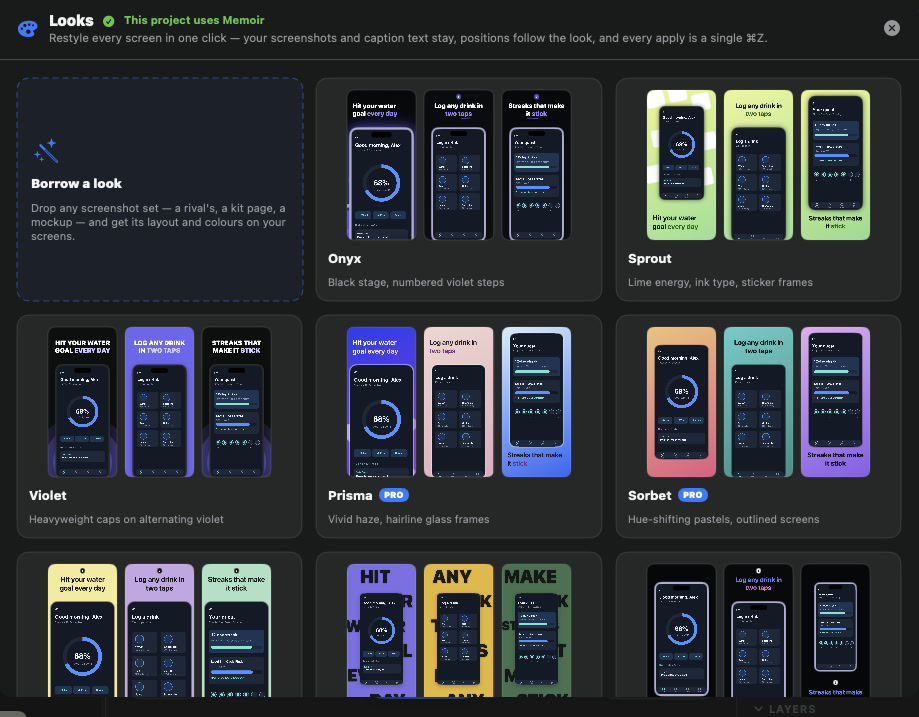
Borrow a look reads any finished screenshot set you drop in (a mockup, a kit page, a set you admire) and turns its layout and colours into a look for your own screenshots. Applying a borrowed look is part of Storeboard Pro. Restore my design takes you back to your own design after trying looks.
Generated backgrounds Coming soon
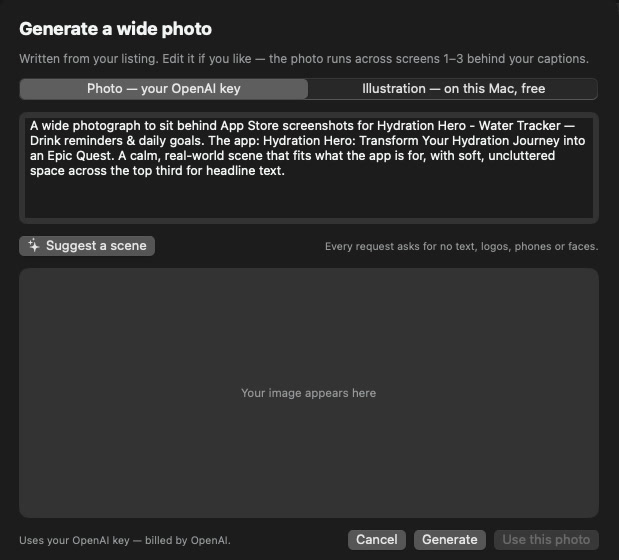
In 1.3, a screen can have a photo behind everything, and you can generate one from your listing:
- Photo, with your own key: OpenAI or Google draws it, billed to your account with them. Add an image key in Settings ▸ AI ▸ Images. It's separate from the AI that writes your text, so Claude can write while OpenAI or Google draws.
- Illustration, on your Mac, free: made by Image Playground on Macs with Apple Intelligence. Nothing leaves your Mac.
Storeboard writes a starting description from your listing, which you can edit. Every request asks for no text, logos, phones or faces. When a generated photo is busy behind a caption, Storeboard adds a shade from the caption's edge and sets the caption colour to stay readable.
Header and search results images Coming soon
iOS 27 adds two images to every product page: a header above your icon and a search results image. Media ▸ Creative assets designs the header (3840 × 1646), the search results image (3840 × 2560) and the universal image (5244 × 2950) from screenshots you've already made, in every language, and publishes them to App Store Connect's Asset Library. The App Store preview also shows your header at the top of the page, as iOS 27 does. Our guide covers Apple's sizes and rules for header and search images.
Accessibility Coming soon
Readability check and Make text bigger
Right under the caption's Size slider, Readability measures each screen the way it will be seen: the caption's contrast against whatever is behind it, and how big the caption shows in iPhone and iPad search results. Check every screen… lists the whole set. When a caption is small in search, Make text bigger (in either place) raises every caption on that device in one step, and one ⌘Z undoes it.
Colour vision preview
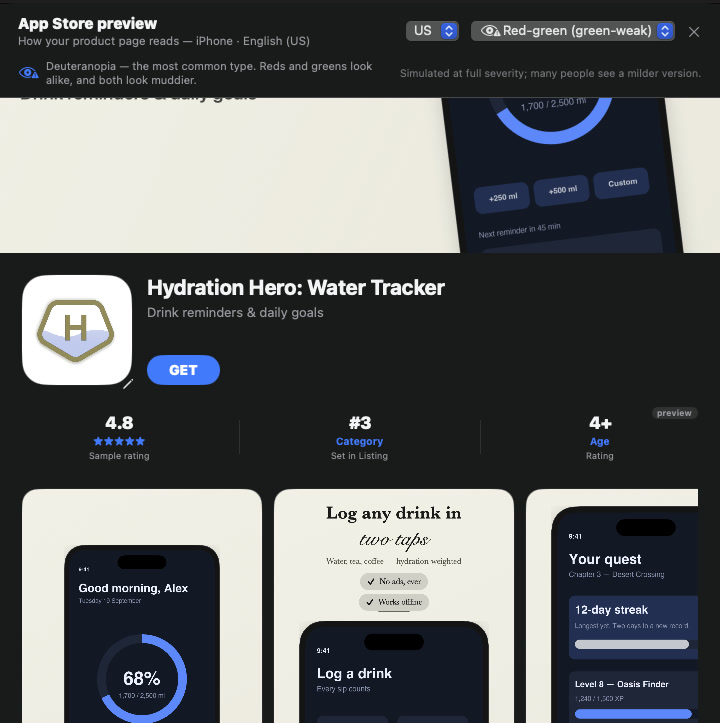
The App Store preview can show your product page as people with red-green or blue-yellow colour blindness, or no colour vision, see it. Use it to check that highlighted words and charts still read.
Accessibility Nutrition Labels
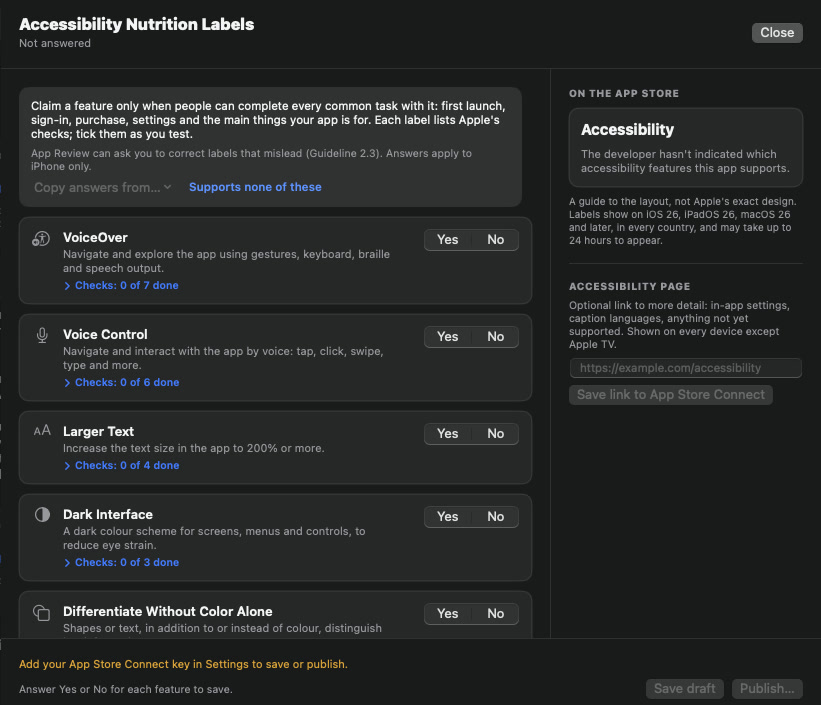
App Store product pages can list the accessibility features an app supports, such as VoiceOver, Voice Control and Larger Text. Listing ▸ Accessibility labels walks you through Apple's checks for each feature, device by device, then saves a draft or publishes the labels to App Store Connect with your API key.
Storeboard's own accessibility
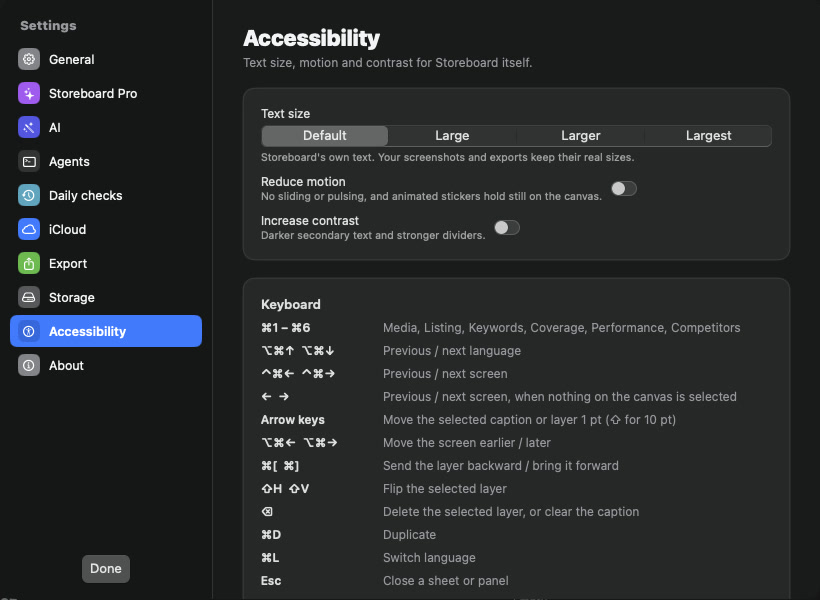
Storeboard itself gets VoiceOver labels throughout, its own text size setting, Reduce Motion and Increase Contrast in Settings ▸ Accessibility, keyboard shortcuts for tabs, screens, languages and layers, and a non-drag way to do everything you can do by dragging. Announcements such as "Plan applied" are spoken by VoiceOver.
Layers and the canvas Coming soon
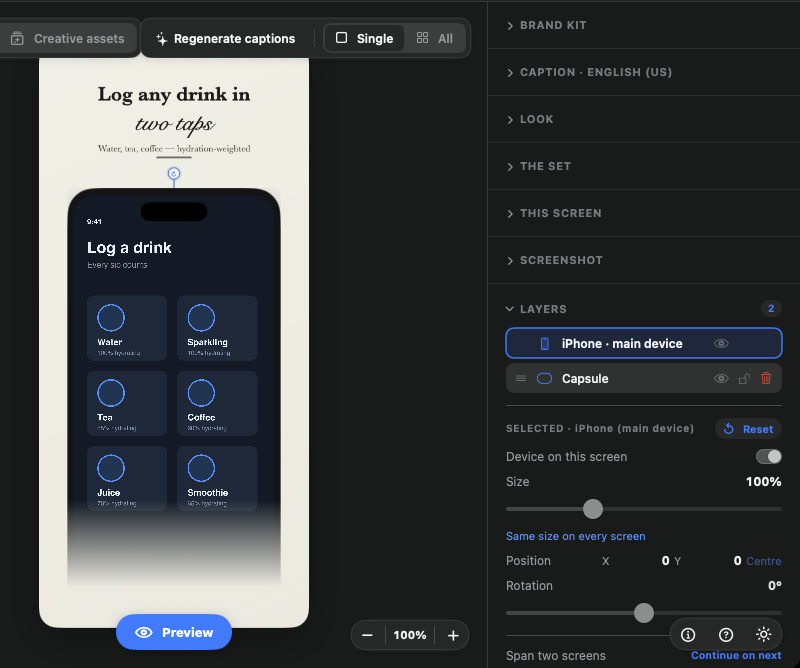
- Layers has its own section, and the main device is a layer you can select. The order of the list decides what's in front.
- An eye on every layer hides it without deleting it.
- A knob above the selection rotates it, with a live angle readout.
- The Brand kit sets the colour and background of highlighted caption words for the whole set.
- ⌘+, ⌘− and ⌘0 zoom the canvas.
Publishing to App Store Connect Coming soon
- Each row picks its own languages: metadata, screenshots and header and search images can each go to all languages or only some.
- Success means finished: after a run, Storeboard reads every image back from App Store Connect, waits for ones still processing, and re-uploads any that never finished.
- Custom product pages can have several languages and their own search keywords, and can have a design of their own instead of the main listing's.
- Warnings sit in the row they're about, and options lock while a run is going.
Storeboard in your language Coming soon
In 1.3, the interface is in German, French, Spanish, Japanese and Simplified Chinese, as well as English. Choose it in Settings ▸ General ▸ Language. Your listings, captions and keywords keep their own languages.
Agents Coming soon
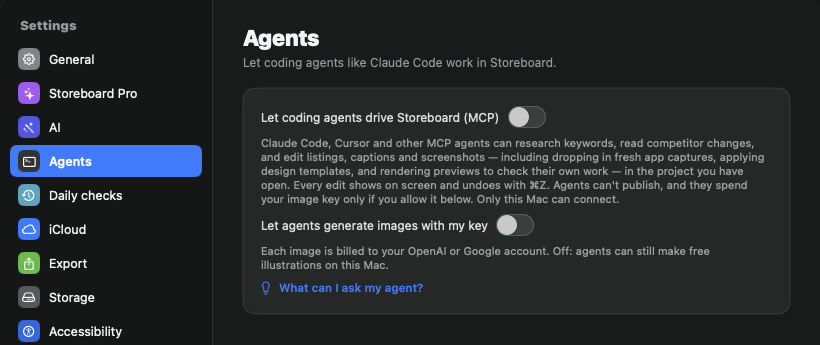
Coding agents such as Claude Code can drive Storeboard through MCP, once you turn it on in Settings ▸ Agents. 1.3 gives agents the same reach as the inspector, including screen types, Plan the set, Make text bigger and generating backgrounds. Agents can't publish. They can spend your OpenAI or Google image key only if you turn on Let agents generate images with my key, which is off by default; without it they can still make free illustrations on your Mac. Every agent change shows in the window and undoes with ⌘Z.
Smaller changes Coming soon
- Backups share their images, so ten backups take about the space of one copy of a project. Settings ▸ Storage shows what's kept and frees space.
- Settings becomes a window with a sidebar.
- Competitors suggests apps to watch from the keywords you already target.
- Performance has a Product pages card with each custom product page's views, downloads and conversion.
- Listing is in collapsible sections: Search, Product page and This version.
- One-time tips on each tab, and a What's new tour for people updating (Help ▸ What's New in Storeboard).
- Projects are saved as "Name.asoproj" files.
Get Storeboard
1.3 arrives as an update to the app you download today. Storeboard runs on your Mac: no account, no upload. Free to download, with an optional one-time Pro purchase.
Get Storeboard for Mac