 Storeboard
Storeboard/Blog/Header and search images
App Store header and search results images (iOS 27)
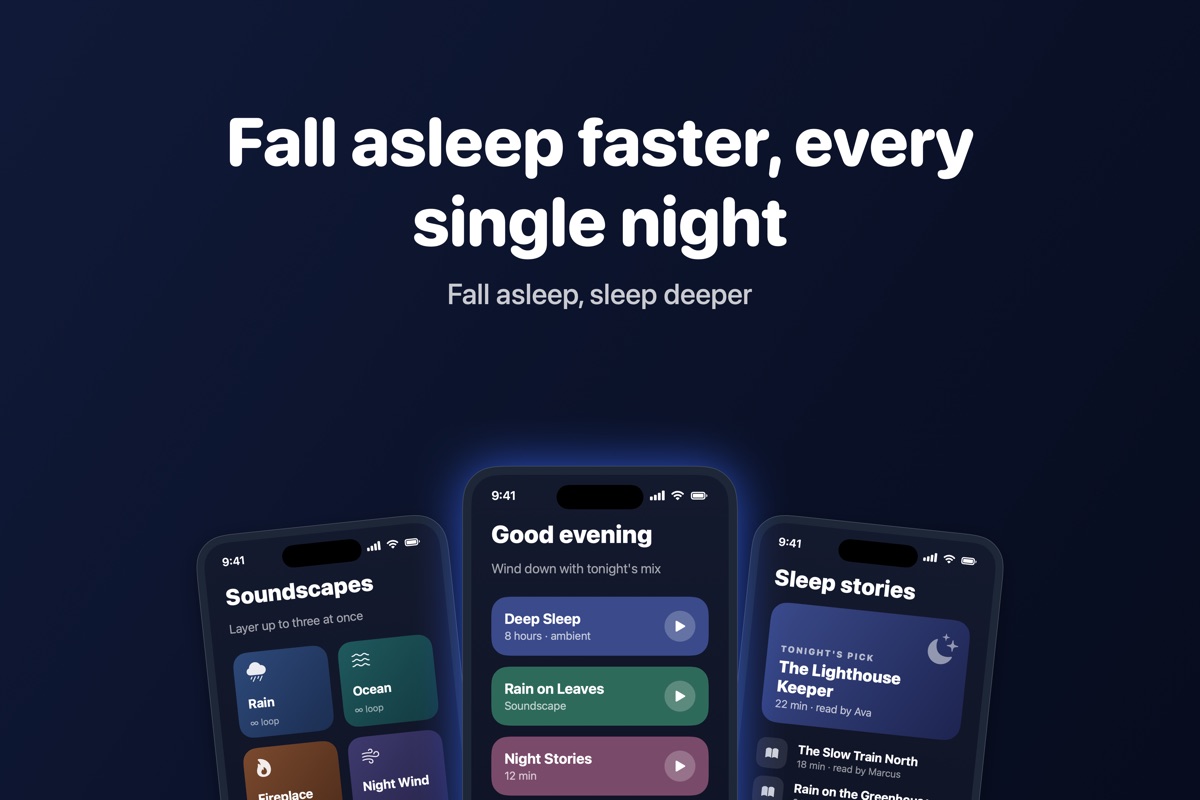
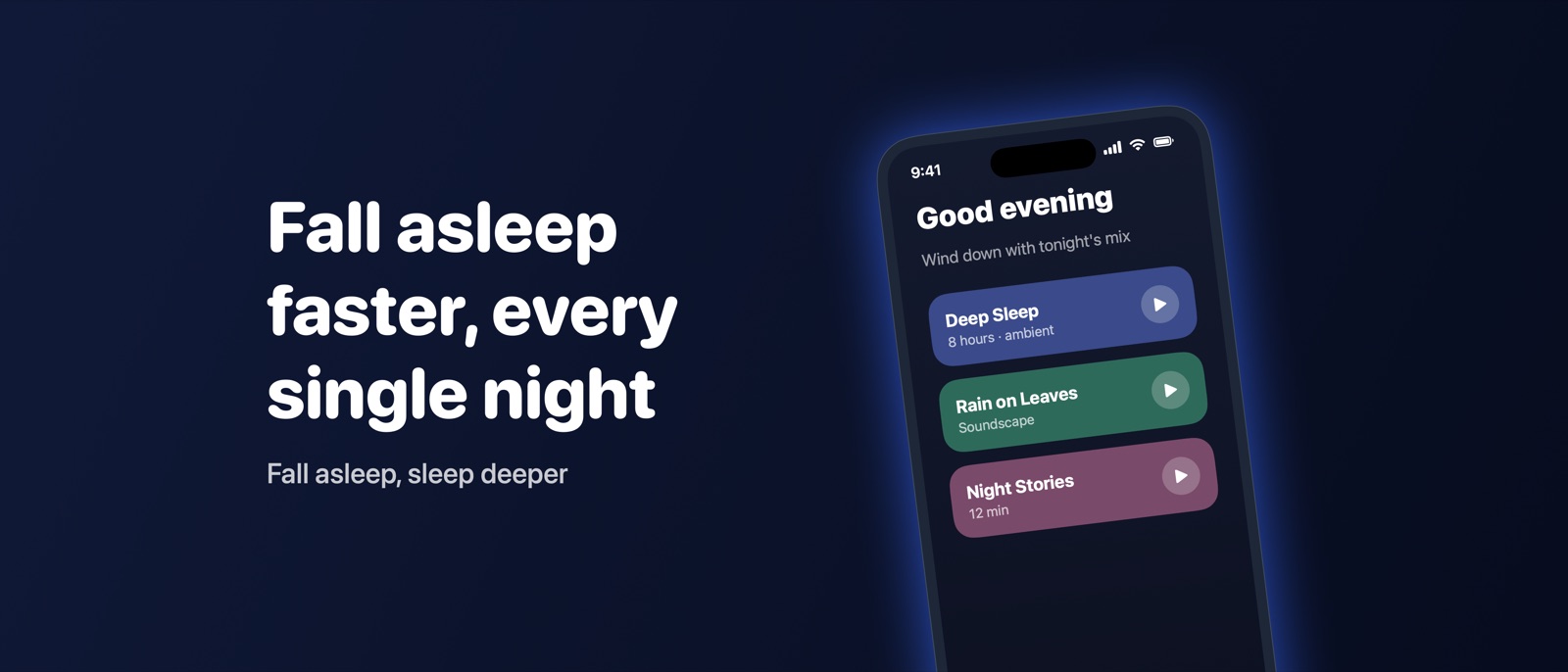
iOS 27 and iPadOS 27 add two images to your App Store listing: a product page header (3840 × 1646, 21:9) above your icon, and a search results image (3:2, from 1920 × 1280 to 3840 × 2560) that people see in the Search tab. One 16:9 universal PNG at 5244 × 2950 can fill both.
These "creative assets" are the biggest change to how apps look on the App Store in years. The search results image is the first thing someone sees when they search, ahead of your screenshots. Here's everything Apple has published about them, plus what we learned designing them in every language.
Sizes and formats
From Apple's creative assets specifications:
| Placement | Ratio | Size (pixels) | Formats |
|---|---|---|---|
| Product page header | 21:9 | 3840 × 1646 | JPEG or PNG |
| Search results | 3:2 | 1920 × 1280 to 3840 × 2560 | JPEG or PNG |
| Universal (fills either) | 16:9 | 5244 × 2950 | PNG only |
Images can't have transparency, so flatten your background before exporting. Both placements also accept video: same sizes, 30 or 60 fps, 5 to 30 seconds, as .mov, .m4v or .mp4. Videos loop and start muted; on the product page people can unmute them, in search results they can't.
Where they appear
Apple says creative assets appear across the App Store on iOS 27 and iPadOS 27 and later: on your product page, in search results and when your app is featured. You can also use them on custom product pages and test them with product page optimization (Apple's asset best practices). Apple doesn't mention the Mac App Store.
- Header: the top of your product page, above the icon and screenshots. Apple suggests it for your brand, seasonal offers and new content.
- Search results: what people see when your app comes up in the Search tab. For most indie apps, this is where downloads start, so design it first.
The rules Apple has published
From the same best-practices page. Breaking them gets an asset rejected:
- 4+ only. Assets must meet a 4+ age rating, even if your app is rated higher.
- No prices, discounts, website URLs or copyright symbols.
- No claims you can't back up, such as awards you haven't won.
- No other platforms: no logos of or references to other stores or marketplaces.
- No Apple recognitions such as Editors' Choice, App of the Day or Apple Design Award.
- Keep text short. Apple suggests "a short phrase that enhances your visual rather than describes it", and everything must stay readable.
- Keep the focal point centred, inside a safe area, because devices and orientations crop differently.
One universal image, or two separate ones?
The 16:9 universal image is the least work: make one design and it fills both slots. The cost is cropping. Apple hasn't published exact crop areas, but if the App Store crops a universal image around its centre, the 21:9 header keeps the full width and about 76% of the height, and the 3:2 search result keeps the full height and about 84% of the width. So anything near the top, bottom or sides of a universal image can be cut off in one of the two places.
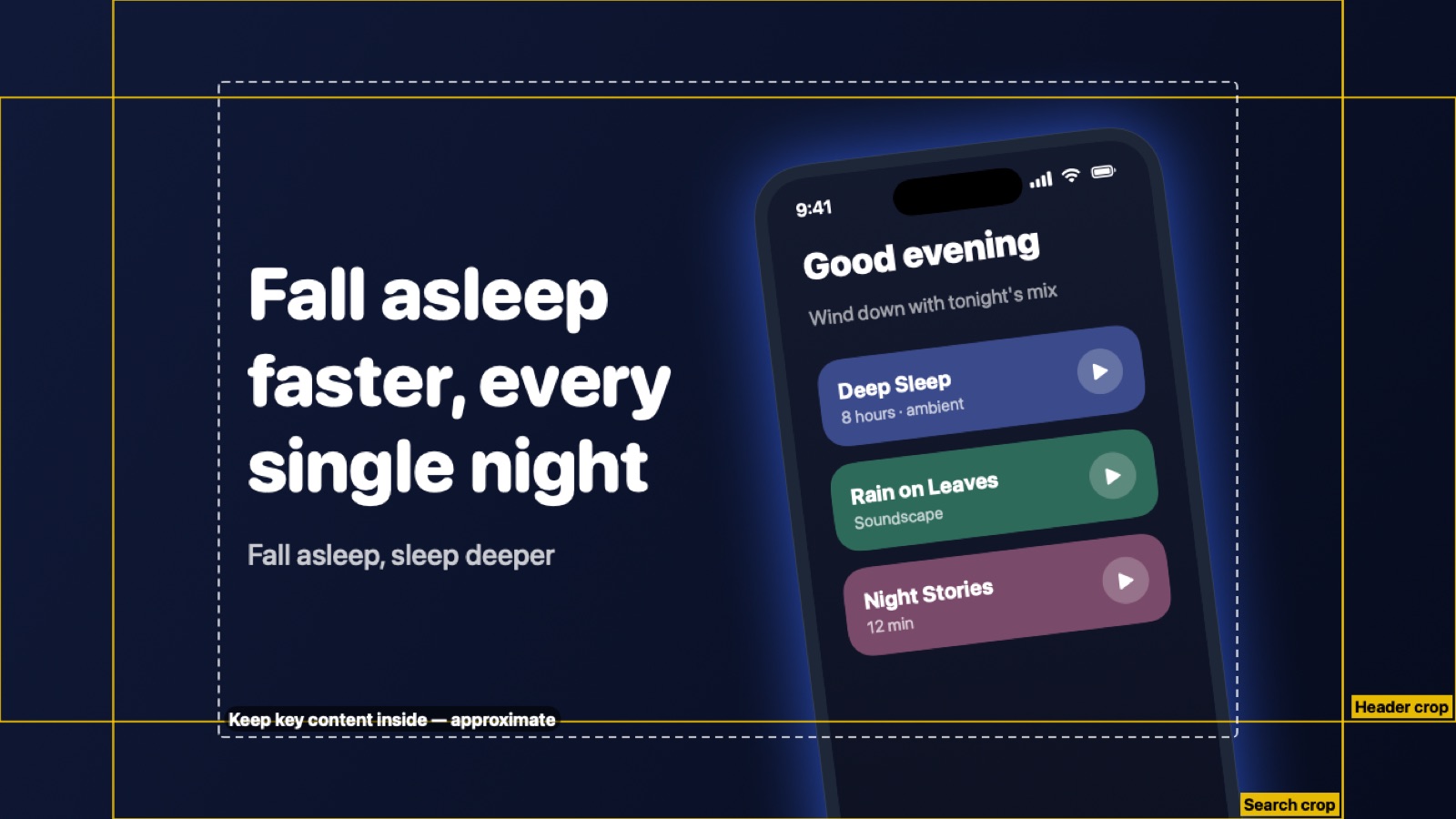
Our rule of thumb: use a universal image while you're getting started, then design a dedicated 3:2 search image once you know search is where your downloads come from. The search image works harder, and a wide header layout rarely suits a 3:2 frame.
Do them in every language
Apple says to localize these images "for all languages your app supports", and they're uploaded per language like screenshots. If your headline is in English and your listing is in German, the first thing a German searcher sees is English. The free ASO review checks the same gap for your screenshots, storefront by storefront. German and Finnish often run 30 to 40% longer than English, so check every language still fits inside the safe area, not only your source language.
How to upload them
- On the version page: App Store Connect has a "Header and Search Results" tab next to App Previews and Screenshots. Assets added there are reviewed with that version.
- In the Asset Library: submit assets on their own, without a new app version, and reuse them on custom product pages.
- Through the App Store Connect API: version 4.5.1 of the API added Asset Library
endpoints, with placements named
PRODUCT_PAGE_HEADER_ASSETandAPP_STORE_SEARCH_RESULTS_ASSET.
Use App Store Connect's Preview button before submitting to see the crops on real device shapes.
Making them in Storeboard
Coming in Storeboard 1.2: a Creative assets section next to your screenshots designs all three images from screenshots you've already made.
- Three layouts (one tilted screen beside a headline, three screens under a headline, or your icon and name with no devices), at Apple's exact pixel sizes.
- A headline and a line under it per language, filled from your translated captions by default.
- A rule check that flags prices, URLs, ©, awards and other-platform mentions before you submit.
- Safe-area and crop guides on the universal image; drag the words or the phone to move them.
- Export as PNGs for every language, or publish straight to App Store Connect with your own API key.
Design screenshots and creative assets in every language
Storeboard runs on your Mac: no account, no upload. Free to download, with an optional one-time Pro purchase.
Get Storeboard for MacFAQ
What size is the App Store header image?
3840 × 1646 pixels at 21:9, as JPEG or PNG. You can also use a 16:9 universal PNG at 5244 × 2950, which can fill both the header and the search result.
What size is the App Store search results image?
3:2, from 1920 × 1280 up to 3840 × 2560 pixels, as JPEG or PNG. The 5244 × 2950 universal PNG also works here.
Can the header or search image be a video?
Yes. Both take video at the same sizes, 30 or 60 fps, 5 to 30 seconds, as .mov, .m4v or .mp4. Videos loop and start muted, and can't be unmuted in search results, so the video must work silently.
Can I put text or a price on them?
Short text, yes: Apple suggests a short phrase that adds to the image. Prices, discounts, URLs, copyright symbols, unverifiable awards, other platforms and Apple recognitions aren't allowed.
Do they show on the Mac App Store or older iPhones?
Apple says they appear on iOS 27 and iPadOS 27 and later, and doesn't mention the Mac App Store. Keep your screenshots strong either way: they're still on every product page.