 Storeboard
Storeboard/Blog/Asset Library API
App Store Connect API: upload and place Asset Library assets
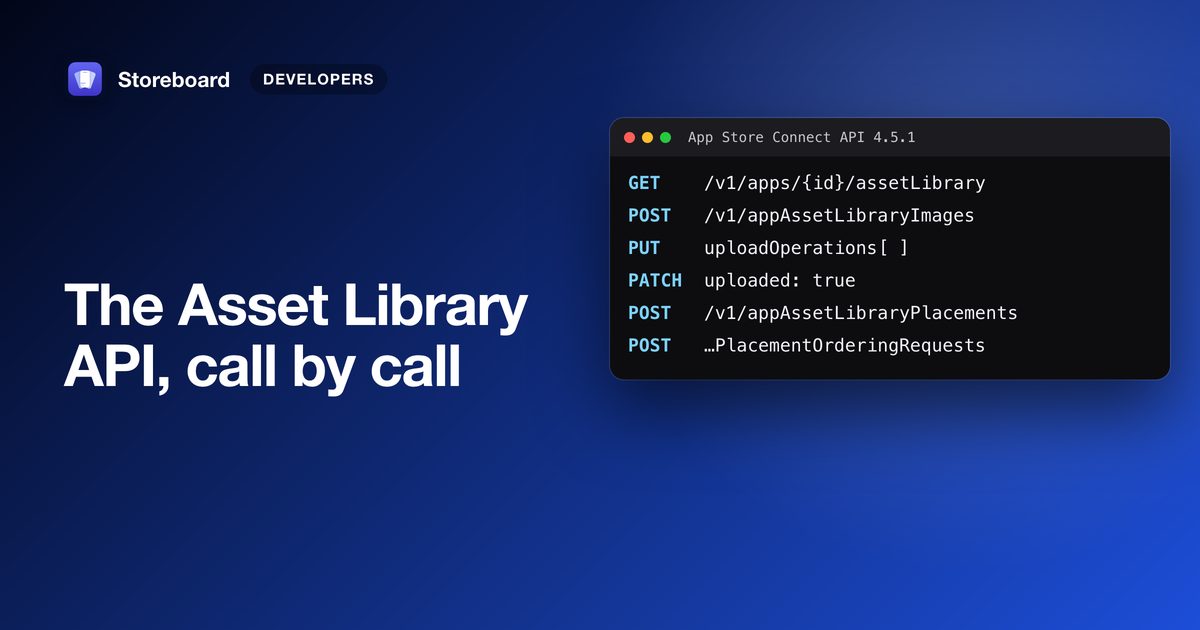
Version 4.5.1 of the App Store Connect API adds the Asset Library. Uploading a screenshot,
header or search image is now: GET /v1/apps/{id}/assetLibrary, reserve with
POST /v1/appAssetLibraryImages, upload the bytes to the returned
uploadOperations, commit with PATCH and uploaded: true, then
POST /v1/appAssetLibraryPlacements once per localization. Read sizes and device groups,
including iPhone Duo's, from GET /v1/appAssetLibraryRefData. Apple has deprecated the old
screenshot and preview set resources.
We built Storeboard's publishing of header and search results images and iPhone Duo screenshots on these endpoints in October 2026, because the older resources can't reach either. This guide is the reference we wanted: every call in order, with request bodies taken from Apple's OpenAPI specification 4.5.1 and Apple's App Asset Library documentation. For what the Asset Library is and how it looks in App Store Connect, start with the Asset Library, explained.
The flow at a glance
Asset Library endpoints
| Call | What it does |
|---|---|
GET /v1/apps/{id}/assetLibrary | The app's one library; keep its id |
GET /v1/appAssetLibraryRefData | Every spec, placement group and limit |
GET /v1/appAssetLibraries/{id}/images, /videos | List assets; filter by category, state, referenceName, specId, id; up to 200 a page |
POST /v1/appAssetLibraryImages, /appAssetLibraryVideos | Reserve an upload |
PATCH /v1/appAssetLibraryImages/{id} (or Videos) | Commit (uploaded), rename (referenceName), archive (archived), poster frame (videos: previewFrameTimeCode) |
DELETE /v1/appAssetLibraryImages/{id} (or Videos) | Delete an asset with no placements |
POST /v1/appAssetLibraryPlacements | Put an asset on one localization |
GET / DELETE /v1/appAssetLibraryPlacements/{id} | Read or remove one placement |
GET /v1/appStoreVersionLocalizations/{id}/placements | A localization's placements (also on custom product page, In-App Event and test treatment localizations) |
GET /v1/appAssetLibraryImages/{id}/placements | Everywhere one asset is used |
POST /v1/appAssetLibraryPlacementOrderingRequests | Set display order in one group |
Apple's documentation lists the Account Holder, Admin and App Manager roles for these calls, so generate your API key with one of them.
1. Find the app's asset library
GET /v1/apps/{appId}/assetLibrary
Each app has exactly one library and its id doesn't change, so read it once and keep
it. Every asset you upload relates to it.
2. Read the reference data instead of hard-coding sizes
The reference data is one record with six arrays: features (limits per surface),
placementProfileGroups (device groups, each with a platform and display class),
imageSpecs, videoSpecs, placementTypes (which categories and
specs each slot accepts, per group) and displayClasses. Ask for only what you need:
GET /v1/appAssetLibraryRefData?fields[appAssetLibraryRefData]=placementProfileGroups
GET /v1/appAssetLibraryRefData?filter[placementTypes]=APP_SCREENSHOT&filter[placementProfileGroups]={groupId}
Group identifiers are strings Apple can add to without an API change, such as
IPHONE_DYNAMIC_ISLAND_LARGE_PROFILE or MAC_PROFILE in Apple's examples.
To find iPhone Duo's groups, read placementProfileGroups and keep the ones whose
displayClassId is IPHONE_DUO. Then read each group's specs: Storeboard does
exactly this rather than guessing the Duo group names, and sends the open (2007 × 2853) or folded
(1398 × 2034) export, or their landscape versions, to whichever group accepts that size.
Screenshot and preview specs are exact (minWidth equals maxWidth). The
per-group limits live in features[].placementPolicies[].groupLimits[].maxCount; on a
version Apple's documentation gives 10 screenshots, 3 app previews and 1 product page header per
group.
3. Reserve the upload
POST /v1/appAssetLibraryImages
{
  "data": {
    "type": "appAssetLibraryImages",
    "attributes": {
      "fileName": "header-de-DE.png",
      "fileSize": 4812345,
      "category": "CREATIVE_ASSETS",
      "referenceName": "Header, German, autumn"
    },
    "relationships": {
      "assetLibrary": { "data": { "type": "appAssetLibraries", "id": "{libraryId}" } }
    }
  }
}
fileName,fileSize(bytes) andcategoryare required;referenceNameis optional and only shows in App Store Connect.categoryisCREATIVE_ASSETSfor header, search results and In-App Event media, orAPP_SCREENSHOTS_AND_PREVIEWSfor screenshots and previews. It can't be changed later, and a placement whose type doesn't accept it fails.- The response has the asset
id,state: AWAITING_UPLOADand anuploadOperationsarray.
4. Upload the bytes and commit
For each upload operation, send bytes offset to offset + length with its
method (usually PUT), url and requestHeaders. The URLs are
pre-signed: don't send your API token to them. Large files come back as several parts, which can go in
parallel. Then commit:
PATCH /v1/appAssetLibraryImages/{imageId}
{
  "data": {
    "type": "appAssetLibraryImages",
    "id": "{imageId}",
    "attributes": { "uploaded": true }
  }
}
There's no sourceFileChecksum any more: Apple checks the bytes against the
fileSize you declared, and the commit fails if they differ. The asset moves to
UPLOAD_COMPLETE while Apple processes it, then to PREPARE_FOR_SUBMISSION,
or to FAILED with the reason in stateDetails. Poll
GET /v1/appAssetLibraryImages/{id}. After processing, specId tells you which
spec Apple matched your file to; check it's the one you meant, because it decides which groups accept
the asset.
Videos
Same three steps with /v1/appAssetLibraryVideos. Two differences: you can send
previewFrameTimeCode (Apple's example is "00:00:03:00") to pick the poster
frame, now or later with PATCH, and video specs add frame rates, a duration range and whether audio is
required. Apple only validates footage after upload, so a clip that's too short fails processing
rather than being refused up front. For header and search results videos, Apple's
specifications
say 5 to 30 seconds at 30 or 60 fps.
5. Place the asset on each localization
A placement links one asset to one localization in one slot. This puts a header image on a version's German localization:
POST /v1/appAssetLibraryPlacements
{
  "data": {
    "type": "appAssetLibraryPlacements",
    "attributes": { "placementType": "PRODUCT_PAGE_HEADER_ASSET" },
    "relationships": {
      "image": { "data": { "type": "appAssetLibraryImages", "id": "{imageId}" } },
      "appStoreVersionLocalization": { "data": { "type": "appStoreVersionLocalizations", "id": "{localizationId}" } }
    }
  }
}
- Exactly one asset (
imageorvideo) and exactly one target:appStoreVersionLocalization,appCustomProductPageLocalization,appEventLocalizationorappStoreVersionExperimentTreatmentLocalization. - Placement types in 4.5.1:
APP_SCREENSHOT,IMESSAGE_APP_SCREENSHOT,APP_PREVIEW,PRODUCT_PAGE_HEADER_ASSET,APP_STORE_SEARCH_RESULTS_ASSET,EVENT_CARD_ASSET,EVENT_DETAILS_PAGE_ASSET, plusSEARCH_RESULTS_ADS_ASSET,TODAY_TAB_ADS_ASSETandRETENTION_MESSAGE_ASSET, which Apple's guides don't cover yet. - Screenshots and previews also need a
placementGroupfrom the reference data, for example"placementGroup": "IPHONE_DYNAMIC_ISLAND_LARGE_PROFILE". The schema only requiresplacementType; check the creative types'specMappingsto see whether a group applies to them. - The surface must be editable. Placing on an approved version or custom product
page fails. A placement made before the asset finishes processing starts as
ASSET_PROCESSING. - Placements can't be edited. To replace a header, delete the old placement and place the new asset. A version takes one header per group, so Storeboard removes a language's old header placement before it places the new one.
The same asset can back many placements, so a language-neutral image needs uploading only once.
Read placements back with GET
/v1/appStoreVersionLocalizations/{id}/placements?filter[placementType]=APP_SCREENSHOT&sort=placementGroupPosition&include=image:
the sort gives display order, and there's no position attribute to read.
6. Order screenshots in each group
POST /v1/appAssetLibraryPlacementOrderingRequests
{
  "data": {
    "type": "appAssetLibraryPlacementOrderingRequests",
    "attributes": { "placementGroup": "{groupId}" },
    "relationships": {
      "orderedPlacements": { "data": [
        { "type": "appAssetLibraryPlacements", "id": "{first}" },
        { "type": "appAssetLibraryPlacements", "id": "{second}" }
      ] },
      "appStoreVersionLocalization": { "data": { "type": "appStoreVersionLocalizations", "id": "{localizationId}" } }
    }
  }
}
One request per group per localization, on a version, custom product page or test treatment. In-App Event slots hold one asset each, so they aren't ordered.
7. Submit for review
Placements go through App Review with the surface they sit on: submit the version, custom product
page, test or In-App Event as usual. For a standalone asset, the 4.5.1 spec lets a
reviewSubmissionItems entry relate to an appAssetLibraryImage or
appAssetLibraryVideo. Apple's guides don't walk through that yet, and we haven't run it,
so test it on one asset first. Apple's documentation doesn't describe an API equivalent of App Store
Connect's Publish step for putting an approved asset on a live version.
Rename, archive and delete
- Rename: PATCH
referenceName. - Archive: PATCH
"archived": true. Only approved assets can be archived. - Delete: remove every placement first (
GET
    /v1/appAssetLibraryImages/{id}/placements
lists them), thenDELETEthe asset. Deletes don't cascade. - Clean up abandoned uploads:
GET
    /v1/appAssetLibraries/{id}/images?filter[state]=AWAITING_UPLOAD
finds reservations that were never committed.
Migrating from appScreenshotSets
4.5.1 deprecates App Screenshot Sets, App Screenshots, App Preview Sets, App Previews, App Event Screenshots and App Event Video Clips. Deprecated isn't removed, but those resources have no iPhone Duo display type and can't carry header or search results images. What changes when you move over:
| Screenshot sets (deprecated) | Asset Library |
|---|---|
| Create a set per display type, per language | No sets: a placement carries its type and group |
| Display type is a fixed list | Groups come from reference data at runtime |
Commit with an MD5 sourceFileChecksum | Commit with uploaded: true only |
| The same image uploaded once per language | Upload once, place per language |
| Order by patching the set's relationship | Order with an ordering request |
| Deleting a set removes its screenshots | Delete placements first, then the asset |
Migrate against a version in Prepare for Submission, since approved surfaces don't take new placements. A half-finished run is safe to resume: uploaded assets just sit unplaced until you place them.
Errors you'll meet
| Error | Cause |
|---|---|
409 ENTITY_ERROR.ATTRIBUTE.INVALID, "placementType and placementGroup combination is not supported" | Type, group and asset category don't agree |
409 STATE_ERROR.INVALID_STATE, "Creating a placement is not permitted…" | The version or page is already approved |
409 STATE_ERROR.INVALID_ASSET_STATE, "Only an approved asset can be archived." | Archiving an unapproved asset |
409 STATE_ERROR.ASSET_HAS_PLACEMENTS | Deleting an asset that's still placed |
The fixes, plus the stuck-in-processing and missing-slot cases, are in Asset Library errors and fixes.
Rather not write the upload code?
Storeboard 1.3, coming as an update, designs header, search results and iPhone Duo assets in every language and publishes them to the Asset Library with your own API key. Free to download, with an optional one-time Pro purchase.
Get Storeboard for MacFAQ
How do I upload screenshots with the App Store Connect API now?
Read the app's library with GET /v1/apps/{id}/assetLibrary, reserve the file with POST /v1/appAssetLibraryImages and category APP_SCREENSHOTS_AND_PREVIEWS, upload the bytes to the returned upload operations, commit with PATCH and uploaded true, then create a placement with placement type APP_SCREENSHOT, a placement group from the reference data and the version localization.
Are appScreenshotSets deprecated?
Yes. App Store Connect API 4.5.1 deprecates App Screenshot Sets, App Screenshots, App Preview Sets and App Previews, along with App Event Screenshots and App Event Video Clips, in favour of Asset Library images, videos and placements.
How do I upload iPhone Duo screenshots with the API?
Through the Asset Library. Read the reference data, take the placement groups whose display class is IPHONE_DUO, upload the screenshot as an APP_SCREENSHOTS_AND_PREVIEWS image, and place it with type APP_SCREENSHOT in that group. The deprecated screenshot sets have no Duo display type.
Do I still need an MD5 checksum to commit an upload?
No. Asset Library commits take uploaded set to true and nothing else. App Store Connect checks the bytes against the file size you declared when reserving.
Can I replace the image in an existing placement?
No. Placements can't be changed after they're created. Delete the placement, create a new one for the new asset, and reorder the group if position matters.