 Storeboard
Storeboard/Blog/Accessibility Nutrition Labels
App Store Accessibility Nutrition Labels, one by one
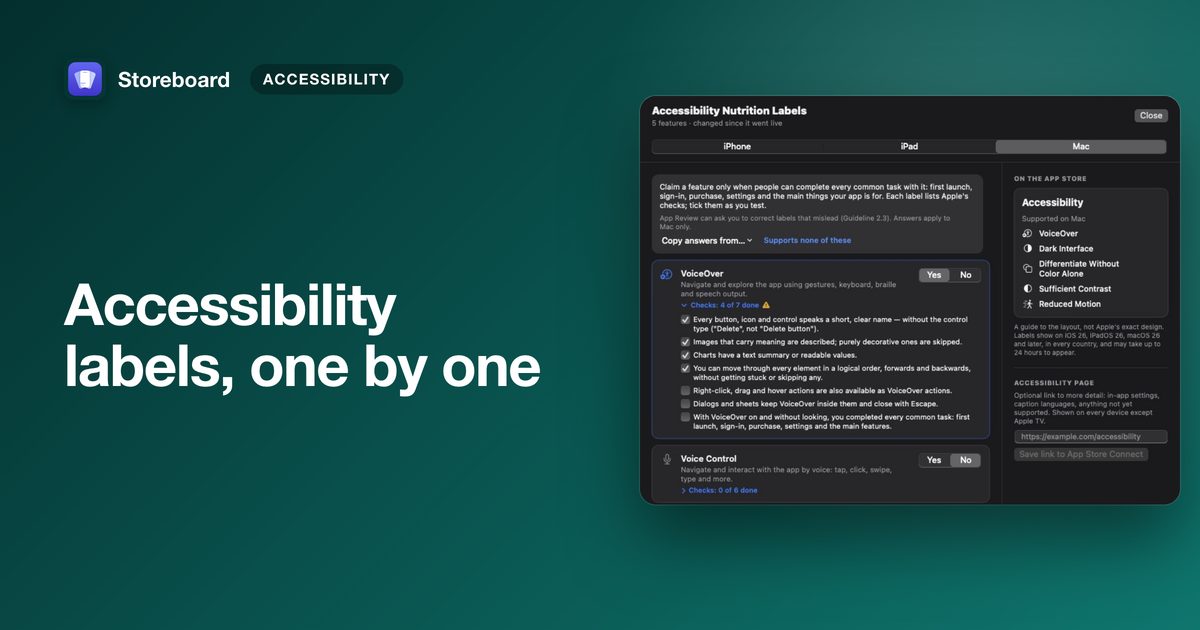
Accessibility Nutrition Labels show on your product page which accessibility features your app supports, such as VoiceOver, Voice Control and Larger Text. You can claim a label only if people can complete every common task in your app with that feature on. They're voluntary for now, Apple says they'll become required, and apps that declare a feature are treated as more relevant when people search for it.
This guide goes through each label, the rule that decides every answer, and how to test before you declare. It ends with how we did it for Storeboard, our own Mac app, because we think a tool that helps you make your listing accessible should be accessible itself.
Why it matters
About one in twelve men has some form of colour blindness (National Eye Institute), and many more people use their phone with larger text, a screen reader or their voice. Before these labels, there was no standard way to tell from the App Store whether an app would work for them: they had to download it and find out. The labels answer that question before the download, and Apple uses them in search: someone looking for "VoiceOver note taking apps" sees apps that declare VoiceOver as more relevant (Apple's overview).
The nine labels
| Label | What you're claiming |
|---|---|
| VoiceOver | People can use the whole app with the screen reader, by gestures, keyboard, braille or speech. |
| Voice Control | People can tap, click, swipe and type by voice alone. Not offered on Apple TV or Apple Watch. |
| Larger Text | Text grows to 200% or more and the layout still works. Not offered on Mac. |
| Dark Interface | Screens, menus and controls have a dark colour scheme. |
| Differentiate Without Color Alone | Shapes or text, not only colour, carry key information. |
| Sufficient Contrast | Text and icons stand out enough from what's behind them. |
| Reduced Motion | Animation that can cause discomfort is reduced or replaced. |
| Captions | Video and audio have time-synchronised text for dialogue and sounds. |
| Audio Descriptions | Video has narration describing what's on screen. |
Captions and Audio Descriptions only apply if your app plays video or audio as part of its common tasks.
The rule behind every answer: common tasks
You can claim a feature only when people can complete all of your app's common tasks with it. Apple counts these as common tasks:
- the main things your app is for;
- the first launch, including onboarding they can finish or skip;
- signing in, if your app has accounts;
- buying, including reviewing an offer's terms;
- settings, including leaving them without changing anything.
Rare tasks don't count. Apple's test for whether a task is common: would you ship an urgent fix if people couldn't complete it? Ads count too, if they appear while people complete a common task and block the feature. And if a bug is serious enough to change an answer, don't claim the label until it's fixed.
How to test each one
- VoiceOver: turn it on (⌘F5 on a Mac; Settings ▸ Accessibility on iPhone) and complete each common task without looking. Every button should say what it does, images that matter should be described, and nothing should be reachable only by dragging or hovering.
- Voice Control: say "Show names" and check each label matches what's on screen, then "Show numbers" and complete each task by number.
- Larger Text: set the largest accessibility text size and check nothing is cut off, overlapping or unreachable.
- Sufficient Contrast: measure with Xcode's Accessibility Inspector or any contrast checker. The common benchmark is 4.5:1 for text and 3:1 for icons and controls, from WCAG. Check light and dark mode: passing in one only is a common miss (Apple's contrast criteria).
- Dark Interface: switch the system to dark and look for anything that stays bright: sheets, notes, empty states, images with white backgrounds.
- Differentiate Without Color Alone: view the app in greyscale. Anything that only colour tells apart, like a red error or a green "live" dot, needs a word, icon or shape too.
- Reduced Motion: turn on Reduce Motion and check animations stop or become simple fades.
Apple suggests a matrix for each device: common tasks as rows, features as columns, and a tick only when the task works with that feature.
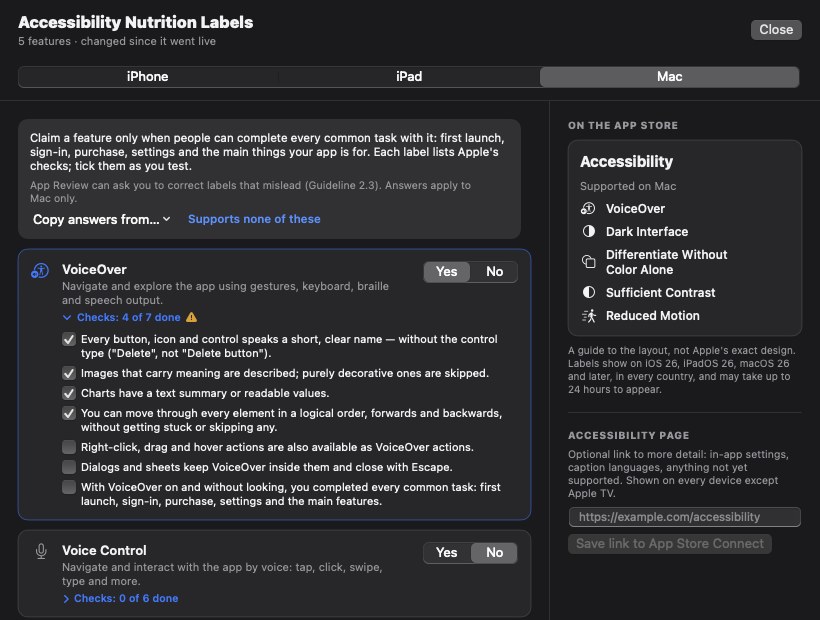
Declaring them in App Store Connect
- Per device. You answer for each device your app supports, and you're only asked about the features that apply to it.
- Silence shows. If you don't answer for a device, the section still appears on your product page and says you haven't indicated support yet.
- iPhone apps on the Mac. If your iPhone or iPad app runs on Apple silicon Macs, you don't answer for Mac: the Mac App Store shows your iPhone or iPad labels.
- Add an accessibility link. An optional URL can explain in-app settings, caption languages or areas that don't support a feature yet. It shows on every device except Apple TV.
- Keep them true. You're responsible for keeping answers accurate as the app changes, and App Review can ask you to correct labels that mislead (Guideline 2.3).
The labels show on product pages in every country where your app is sold, on iOS 26, iPadOS 26, macOS 26 and later, and each device sees its own labels.
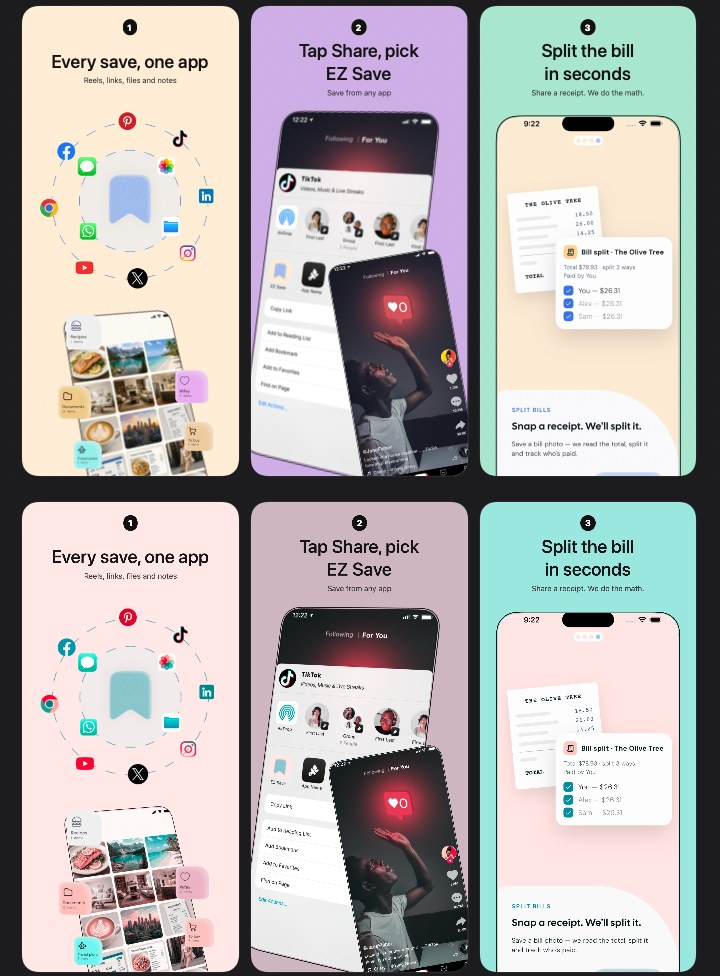
Your screenshots are part of it too
No label covers your product page itself, but it's the first thing anyone reads. Two checks are worth making on every screenshot set:
- Caption size in search. In search results a screenshot shows at a fraction of its size. A caption that's comfortable on your Mac can be a few points tall on a phone.
- Colour vision. A highlighted word or a red-versus-green chart can vanish for someone with colour blindness. View the set through a colour vision simulation before you ship it.
How we did it for Storeboard
Storeboard helps developers make App Store listings, including declaring these labels. We decided early that it had to pass the same bar it asks of you. A developer who is blind, has low vision or doesn't use a mouse should be able to design, translate and publish a listing with it, start to finish.
So for Storeboard 1.3 we went through the whole app, tab by tab, against Apple's criteria for the Mac labels: VoiceOver, Voice Control, Dark Interface, Differentiate Without Color Alone, Sufficient Contrast and Reduced Motion. Larger Text isn't offered on the Mac, but Storeboard has its own text size setting anyway. What we found and fixed:
- Contrast: about 200 pieces of interface text used system colours that measured 1.8 to 3.3:1 in light mode. They now use colours that adapt to the appearance and clear 4.5:1, and every surface clears it with Increase Contrast on.
- Dragging: VoiceOver and Voice Control can't drag, so every drag got another way: Move and Make bigger actions, arrow keys, buttons on the crop box, a Choose screenshots… button where there was only a drop zone.
- Hover: buttons that appeared only on hover are now always shown.
- Silence: results that were only shown, like a finished publish, a failed purchase or a generated image, are now also spoken.
- Names: fields, menus and buttons got names that match what's on screen, so "Click Caption" works.
- Colour alone: the live screenshot set was marked only by colour; it now says "live" too. Changes carry ▲ and ▼, and chart lines differ by dash as well as colour.
- Keyboard: shortcuts for every tab, screen, language and layer, and Escape closes every sheet.
These changes arrive in Storeboard 1.3, which isn't on the App Store yet; the version there today is 1.1.6. The full list is in what's coming in Storeboard 1.3. If something in Storeboard doesn't work with the way you use your Mac, tell us through support and we'll treat it as a bug.
Check your screenshots and declare your labels
Storeboard runs on your Mac: no account, no upload. Free to download, with an optional one-time Pro purchase. The labels editor, readability check and colour vision preview arrive in 1.3.
Get Storeboard for MacFAQ
What are App Store Accessibility Nutrition Labels?
A section on your App Store product page listing the accessibility features your app supports: VoiceOver, Voice Control, Larger Text, Dark Interface, Differentiate Without Color Alone, Sufficient Contrast, Reduced Motion, Captions and Audio Descriptions. You declare them in App Store Connect, per device.
Are Accessibility Nutrition Labels required?
Not yet. Apple says they are voluntary to start and will become required to submit new apps and updates over time. If you don't answer, your product page says you haven't indicated support yet.
When can I claim a label?
Only when people can complete every common task in your app with that feature on: the main features, first launch, sign-in, purchases and settings. Rare tasks don't count.
Which labels apply to Mac apps?
All except Larger Text, which isn't offered on the Mac. If your iPhone or iPad app runs on Apple silicon Macs, the Mac App Store shows your iPhone or iPad labels instead.
Do the labels help my app in search?
Apple says apps that declare a feature are treated as more relevant when people search for it, for example "VoiceOver note taking apps".